How to Make a Coat of Arms: 7 Steps to Your Own Design
Learn how to make a coat of arms with symbols, colors, and a clear brief. Follow a worked family example, review your artwork, and create your own design.
By Armsmith · Last updated:
An effective coat of arms starts with a clear idea. This walkthrough uses Armsmith to make an original digital design, with a family of teachers and gardeners as the worked example. It does not reproduce historical arms or establish a right to use them. If that is your goal, first read the difference between a family crest and a coat of arms.
How to make a coat of arms: start with its purpose
Write one sentence about the people or purpose behind it. Choose two or three related values instead of trying to represent every family member, occupation, and place at once.
For our example: “A household of teachers and gardeners that values learning, care, and continuity.” This gives the design a direction without prescribing dozens of competing objects.
Open the family crest maker for story-based inputs, or the general maker for direct control selection. Family names are optional creative context; they do not trigger a historical lookup.
2. Choose one dominant symbol
Use the central-symbol control to choose the main visual idea. The current tool includes a lion, eagle, crossed swords, crown, dragon, and tree. Pick the shape that helps tell your particular story. A symbol's meaning is not universal, so explain your intended association in the brief.
For our example, choose Tree of life. We want it to suggest growth and continuity. We do not need to add books, garden tools, houses, and portraits to communicate every detail literally.
3. Pick a readable palette and field
Choose Forest green and gold for the worked example. Look for a clear separation between the main symbol and its background. The available palettes are starting points; examine the generated result for contrast instead of relying on the palette name alone.
Select Classic heater for the shield and Solid for the pattern. An uncomplicated field gives the tree room to read. Quartering or stripes can suit a different design, but add them with a purpose rather than as decoration by default.
4. Keep the surrounding elements consistent
The current maker also asks you to choose supporters and a style. For this example, use Two lions and Medieval traditional. Ask for restrained supporters so the tree remains the focal point. The current controls do not offer a “no supporters” option.
If you prefer a modern emblem, try the minimalist style on a later iteration. Change one major choice at a time so you can understand how it affects the result.
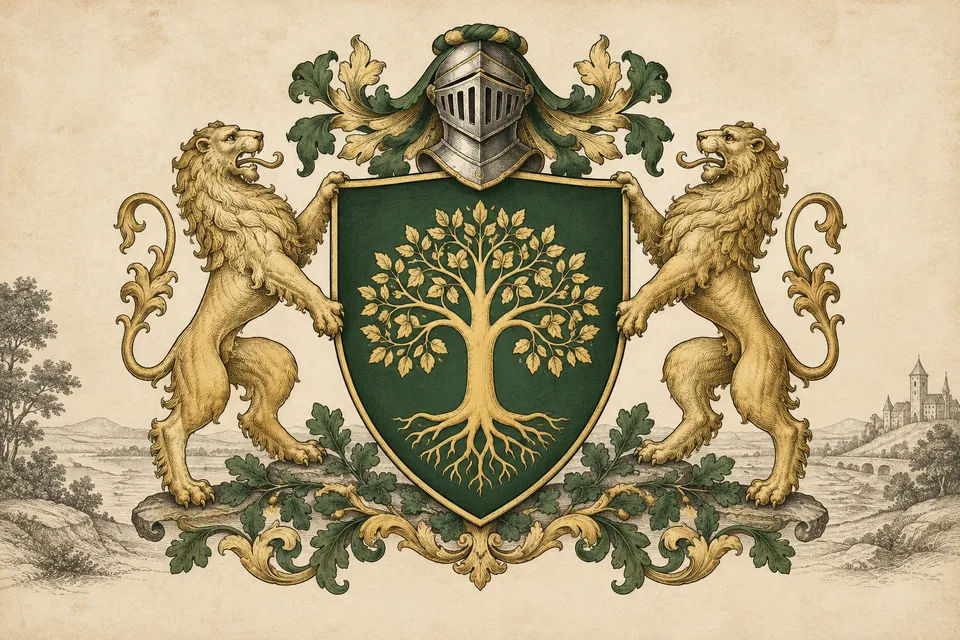
Set up this combination in the homepage coat of arms maker, then use the brief below to explain what the tree should represent.
5. Write and review the creative brief
You can enter this example directly into the editable brief:
An original family design honoring teachers and gardeners. A single tree expresses learning, care, and continuity. Keep the field uncluttered, the supporters restrained, and the main silhouette easy to recognize. Do not reproduce an existing coat of arms.
On the family page, select a starting configuration first, complete the optional story fields, then choose Apply story to creative brief. Review the assembled description below the controls. Applying the story again replaces that description; selecting another preset replaces its configuration and brief.
Names and mottos are creative guidance. The image generator may misspell text, so do not rely on it for precise lettering. The editable brief accepts up to 2,000 characters.
6. Generate one design
Choose Standard 1K for 10 credits or HD 4K for 30 credits. A new account receives 30 complimentary credits valid for 30 days. Each generation creates one design; another attempt consumes credits again. Check the displayed balance and cost before submitting.
If you start as a guest, apply and review your brief before signing in. The maker saves that draft for the return journey in the same browser tab. Leave the page open while the task is processing. If the interface reports an error, follow its status and retry guidance rather than repeatedly submitting new requests.
7. Review before downloading
Check the result at full size and as a small thumbnail:
- Is the tree still the first thing you notice?
- Does it stand out from the field?
- Do the supporters remain visually secondary?
- Are there unexpected marks, extra objects, or incorrect letters?
- Does the design express the original three values?
Download the original image from the completed result or your private crest archive. It is a raster image, not an editable vector drawing. If you want a revision, reuse the configuration and change the brief before creating another generation.
Continue designing
Create a family crest from your own story
, or return to the heraldry guide to choose your next reading. For terminology and historical context, consult the Court of the Lord Lyon's FAQs.
Turn your ideas into a coat of arms
Return to the homepage maker to choose a shield, colors, and symbols, then shape your own creative brief.
Create on the homepage